

Connecting an Agent to a Slack Workflow
Credal now supports triggering agents via Slack Workflows — on a schedule or based on a condition. This unlocks automation use cases that weren't possible before, like sending a daily digest, running a check on a cadence, or automatically responding to events in your workspace.
Prerequisites
Section titled “Prerequisites”Before setting up a Slack Workflow trigger, your agent must already be published to Slack. If you haven't done this yet, follow the Agents in Slack guide first.
Step 1: Publish your agent to Slack
Section titled “Step 1: Publish your agent to Slack”In your agent's Publish settings, go to Slack Channels, enable Talk to your agent in Slack, and add the agent to the channel where your Slack Workflow will post.
Step 2: Copy your Workflow ID from Slack
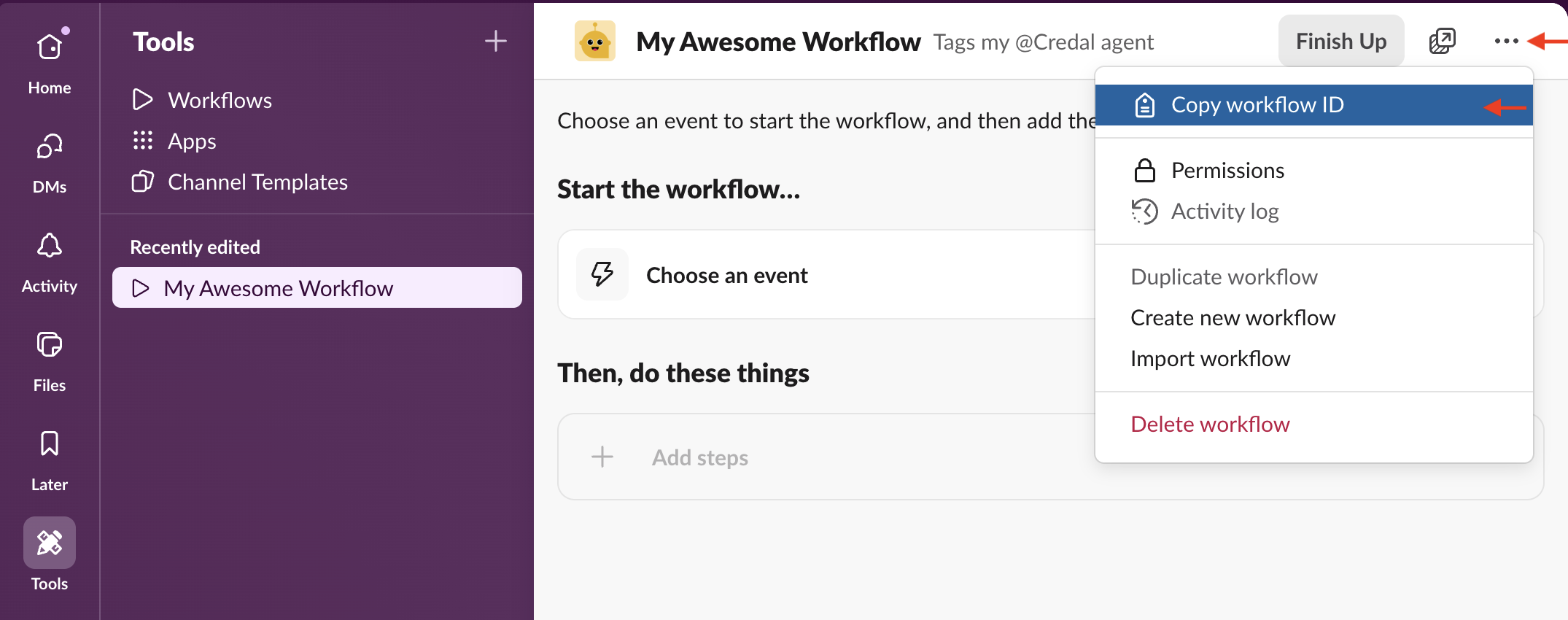
Section titled “Step 2: Copy your Workflow ID from Slack”In Slack, open your workflow and copy the Workflow ID. The agent will respond in the thread of the workflow message rather than posting directly to the channel.
Step 3: Enable "Respond to Slack Workflows"
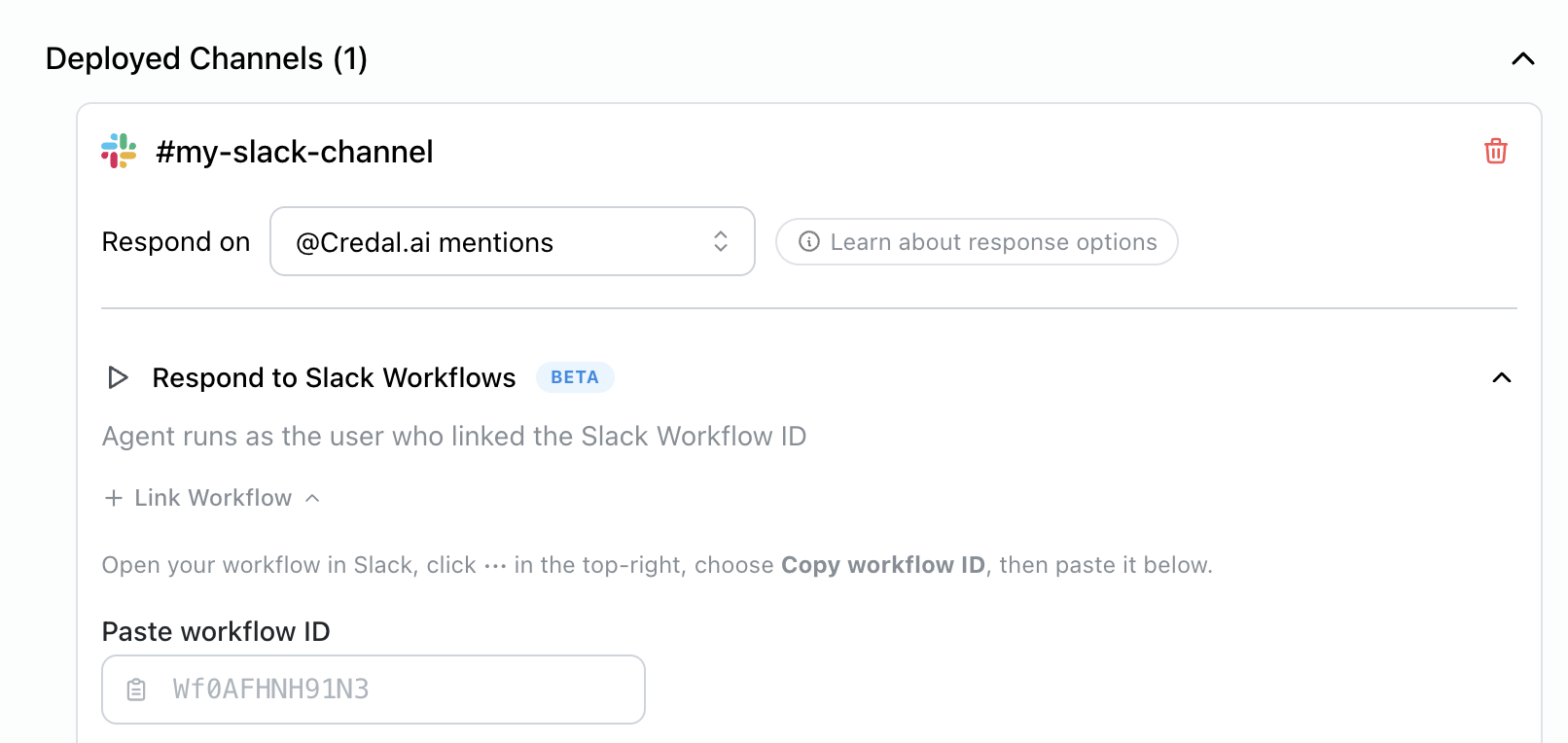
Section titled “Step 3: Enable "Respond to Slack Workflows"”In the same Slack publishing settings, toggle on Respond to Slack Workflows, then paste in your Workflow ID.
Example use cases
Section titled “Example use cases”- Daily digest – Schedule a workflow to run each morning and have the agent summarize overnight alerts, tickets, or news.
- Conditional alerts – Trigger the agent when a specific condition is met in your workflow (e.g. a form submission, an approval event, or an external webhook).
- Recurring reports – Run the agent on a weekly cadence to generate and post summaries from connected data sources.